Manage Findings
Creating a Finding
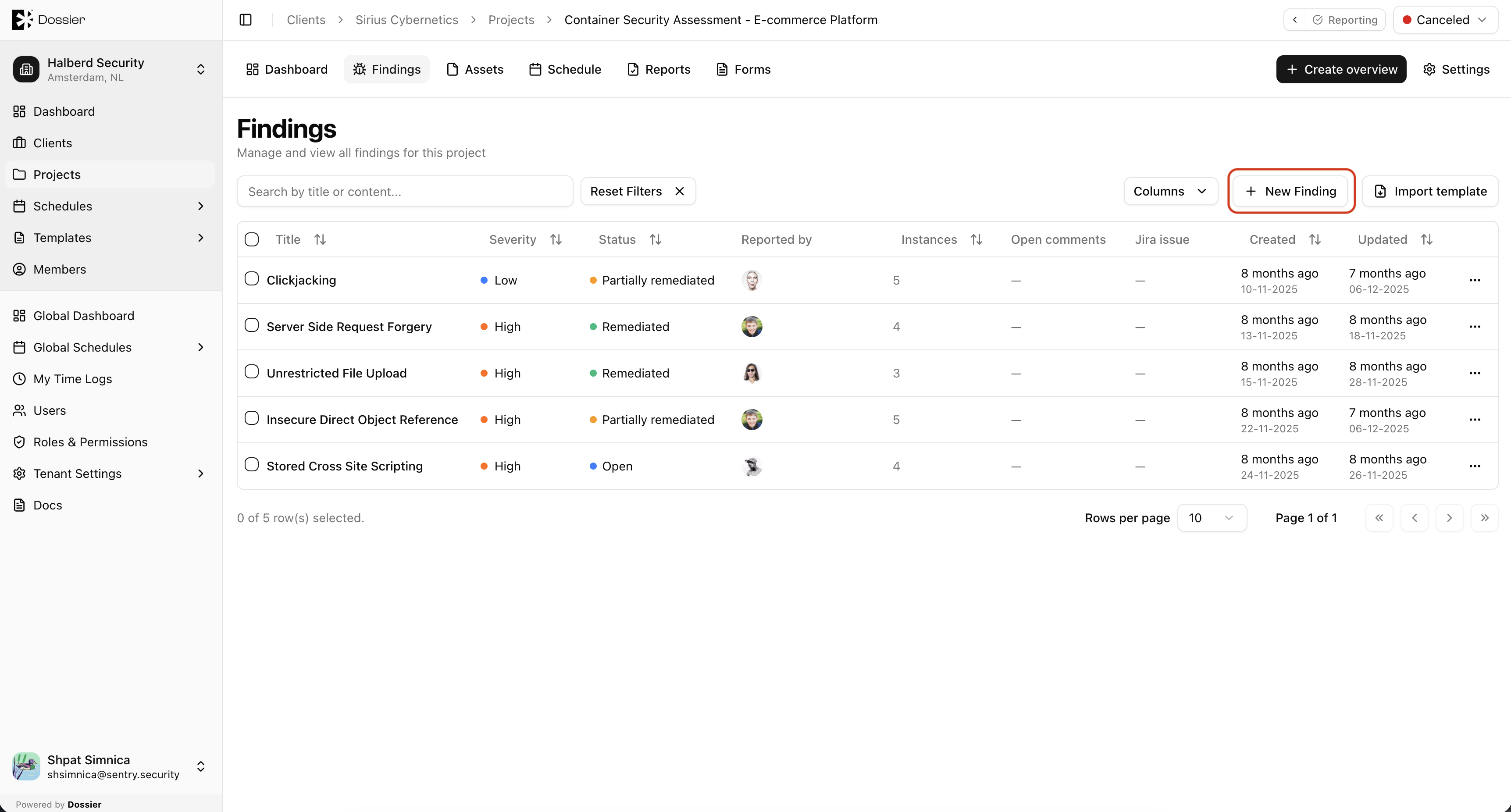
Step 1: Navigate to the Findings tab
Open a project and click Findings in the section navigation. Click New Finding.
Step 2: Fill in finding details
| Field | Description |
|---|---|
| Title | A concise name for the vulnerability. |
| Severity | Informational, Low, Medium, High, or Critical. |
| CVSS Score | Use the CVSS calculator or enter a score manually. |
| Status | Defaults to Draft. |
| Tags | Optional labels for categorization. |
| Assignees / Collaborators | Team members working on this finding. |
| Linked Assets | Assets affected by this finding. |
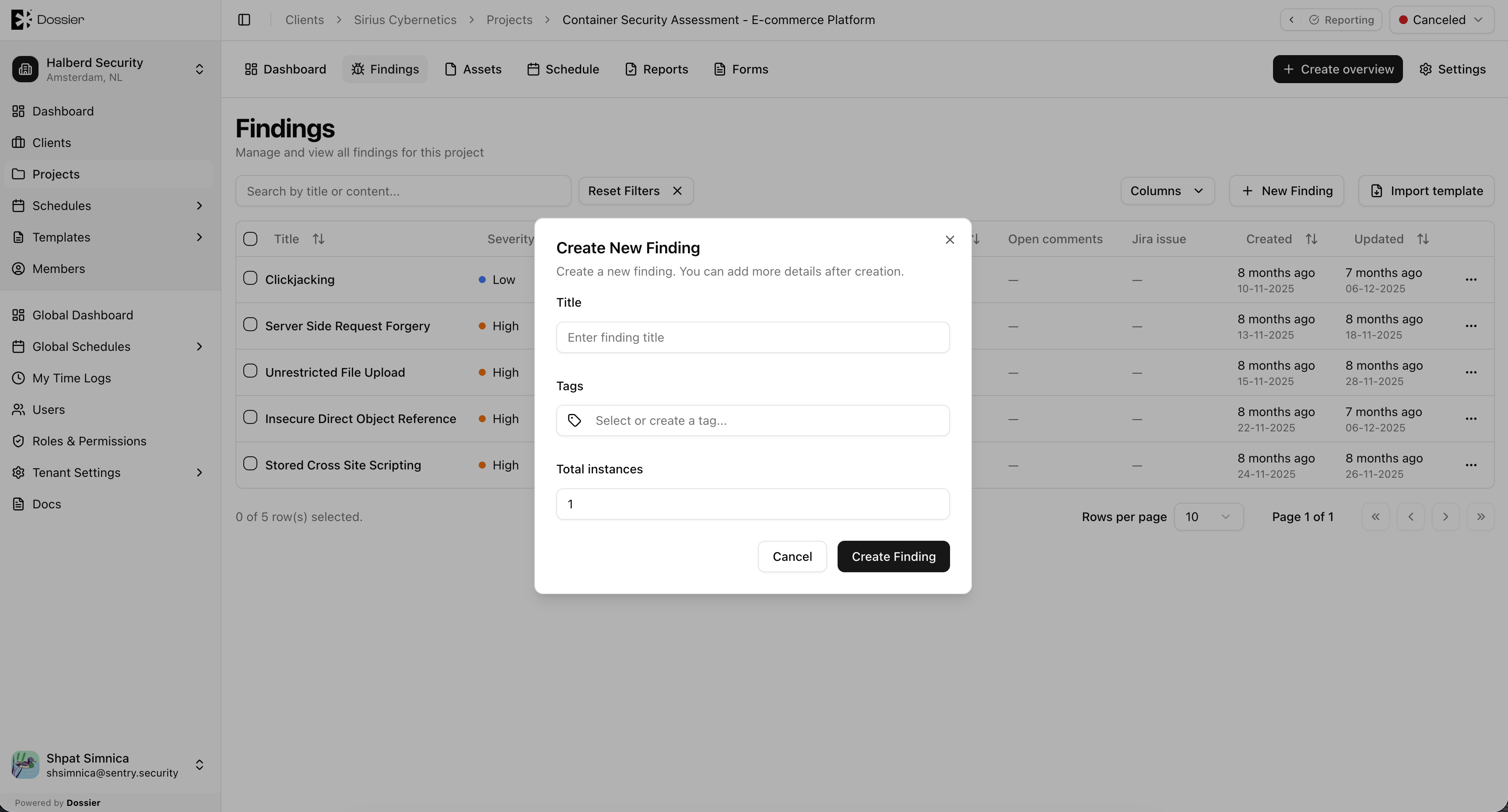
Step 3: Click Create
The finding is created. Click the row to open the finding detail page and write the full content.
Importing from a Template
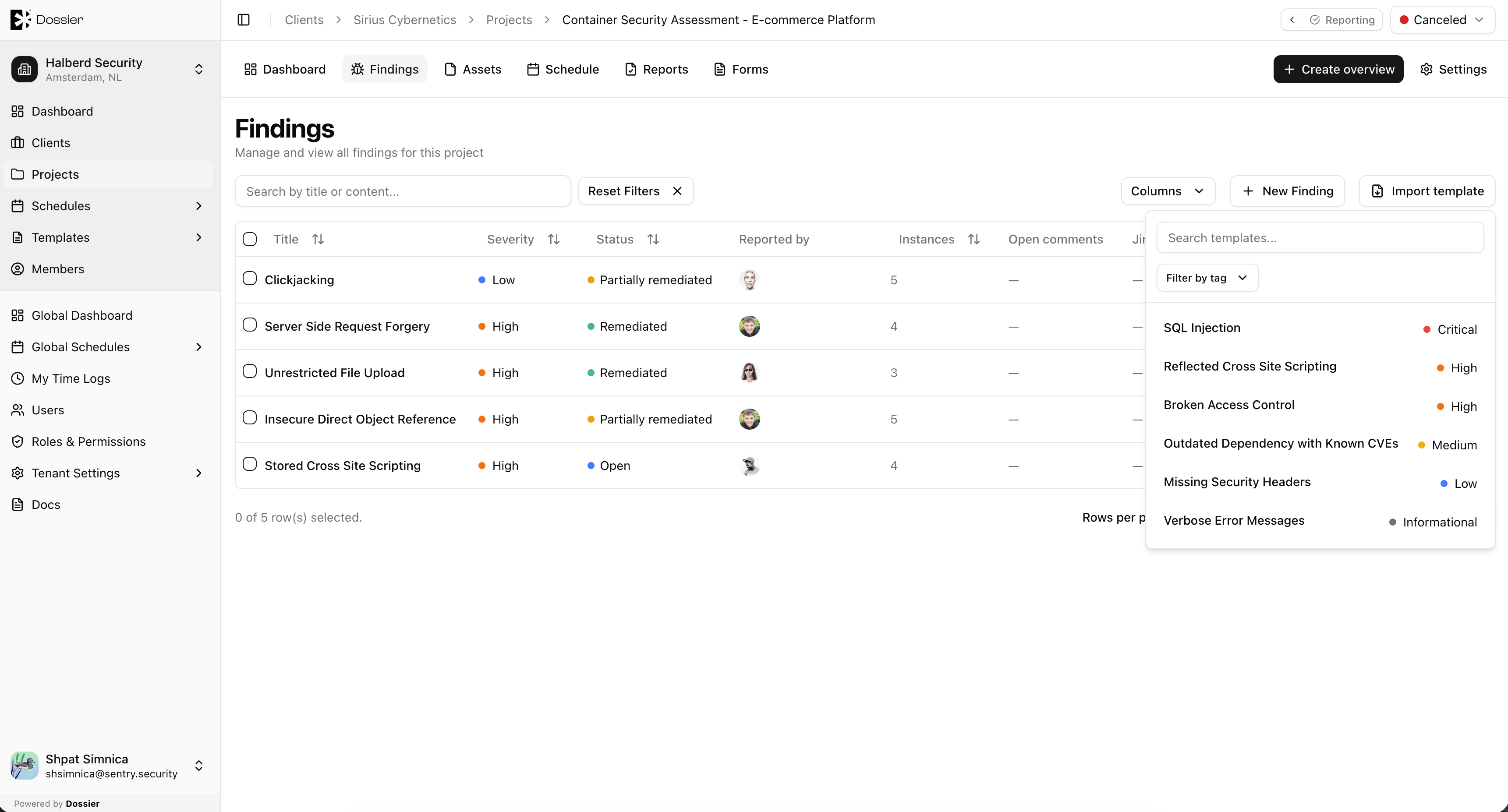
Step 1: Click Import Template
From the Findings list, click Import Template.
Step 2: Select a finding template
Choose a template from the organization-scoped finding templates list. The template's title, severity, CVSS, and content are copied into a new finding.
Step 3: Customize and save
Edit the imported content as needed for this specific finding.
Editing Finding Content
Step 1: Open the finding
Click a finding row to open the detail page.
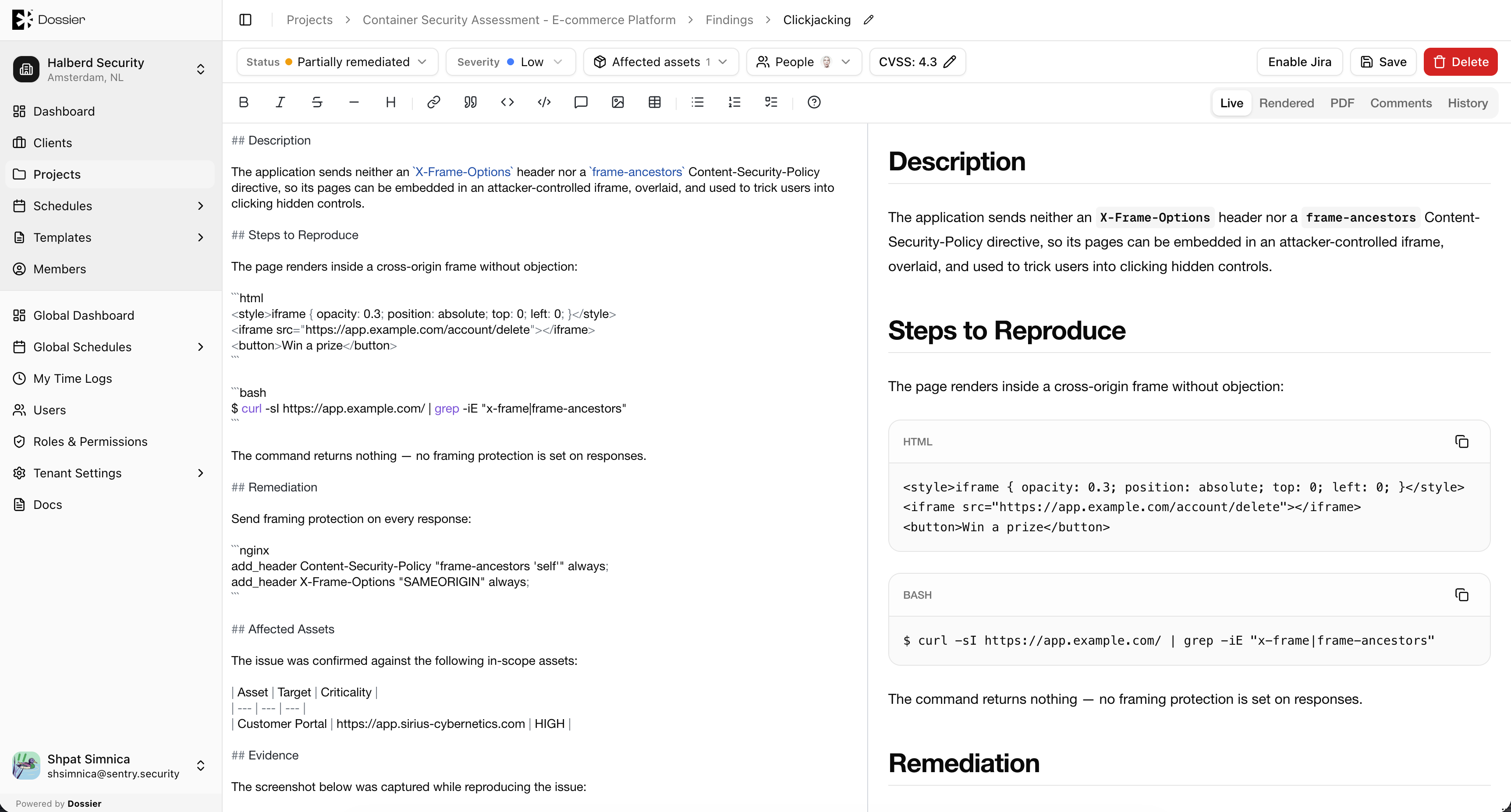
Step 2: Write content in the markdown editor
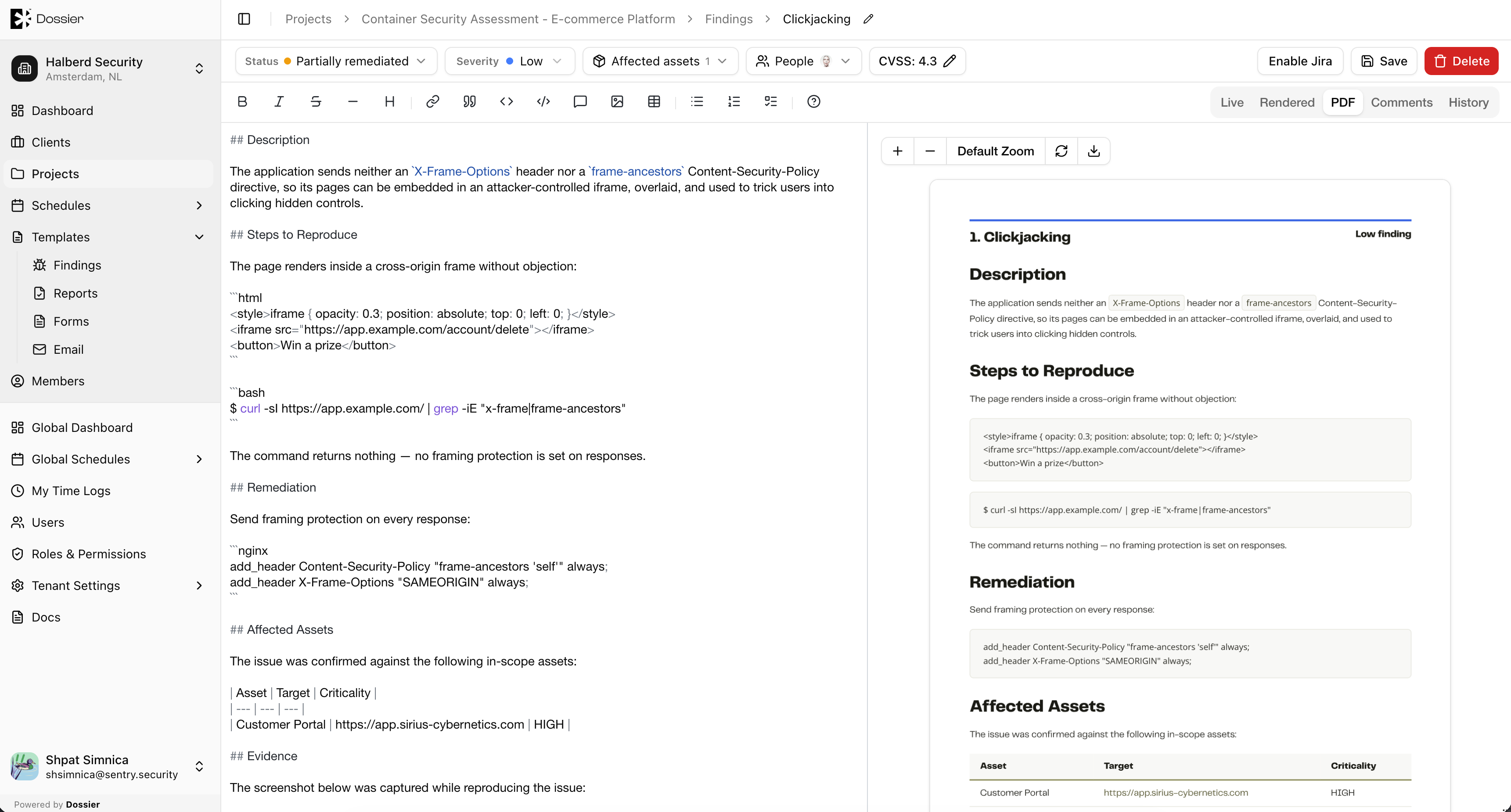
The finding editor supports three view modes:
| Mode | Description |
|---|---|
| Live | Split-pane editor with live preview |
| Rendered | Read-only rendered markdown |
| PDF preview of the finding |
Content auto-saves after a few seconds of inactivity.
Step 3: Update metadata
Use the Edit Finding dialog or inline controls to update title, severity, CVSS, status, tags, assignees, and linked assets.
Changing Finding Status
Single finding
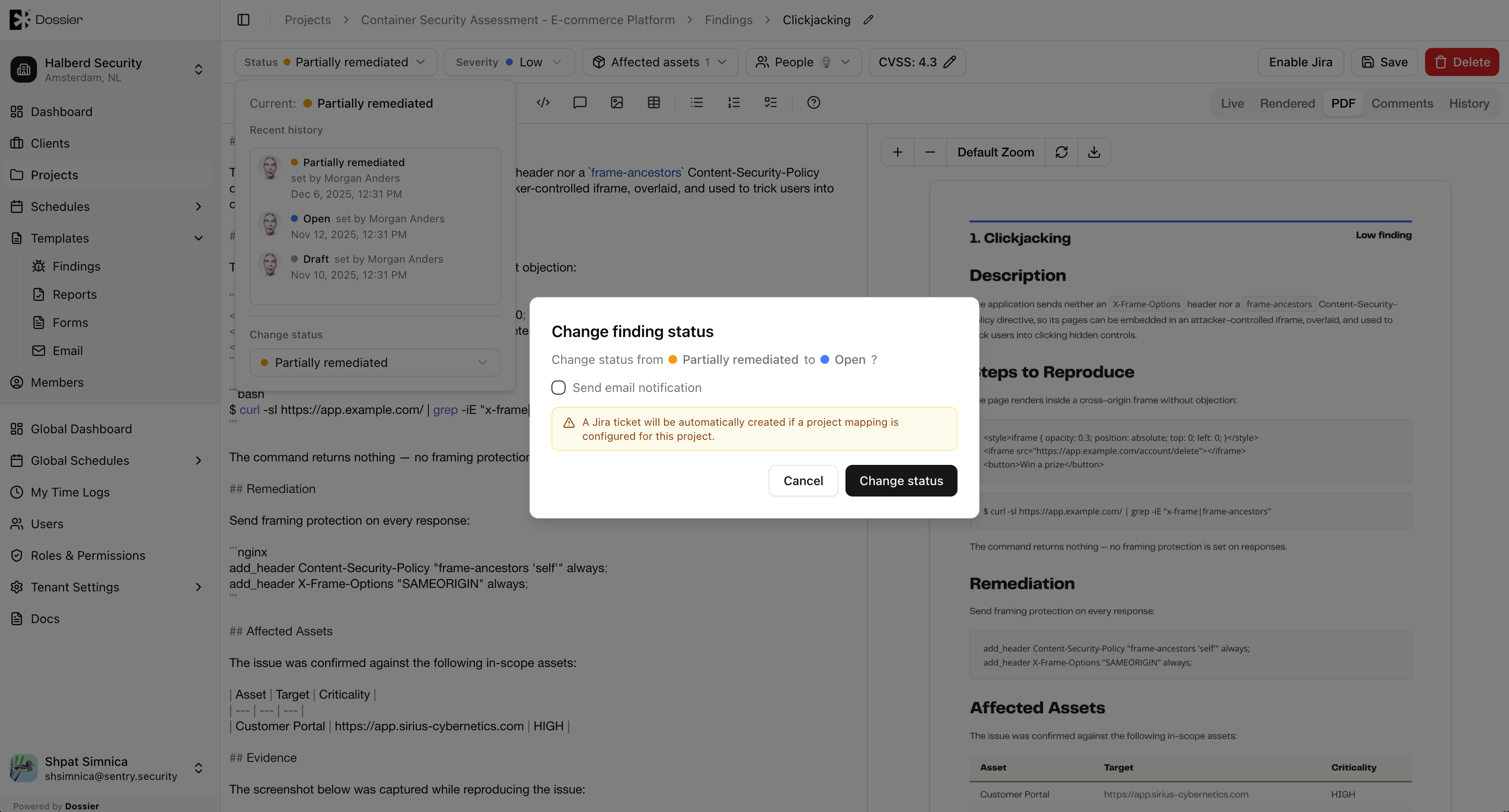
Click the status badge on the finding detail page or in the list. Choose the new status. Optionally enable Send email to notify client recipients.
When a finding moves to Open and the client has Jira connected, Dossier can automatically create a Jira issue.
Bulk status update
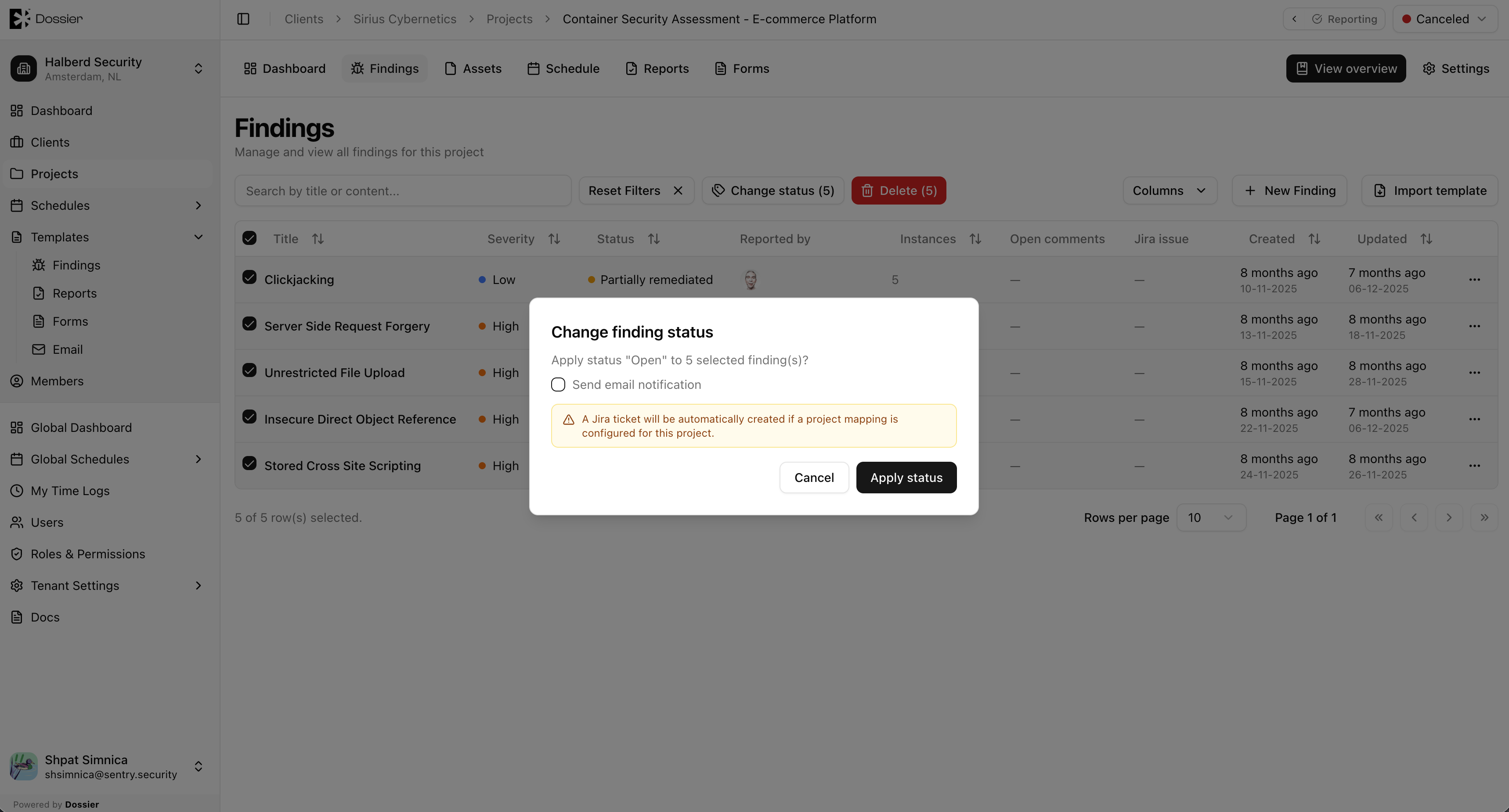
- Select multiple findings using checkboxes on the Findings list.
- Click Bulk Update Status.
- Choose the new status and optionally enable email notification.
Comments
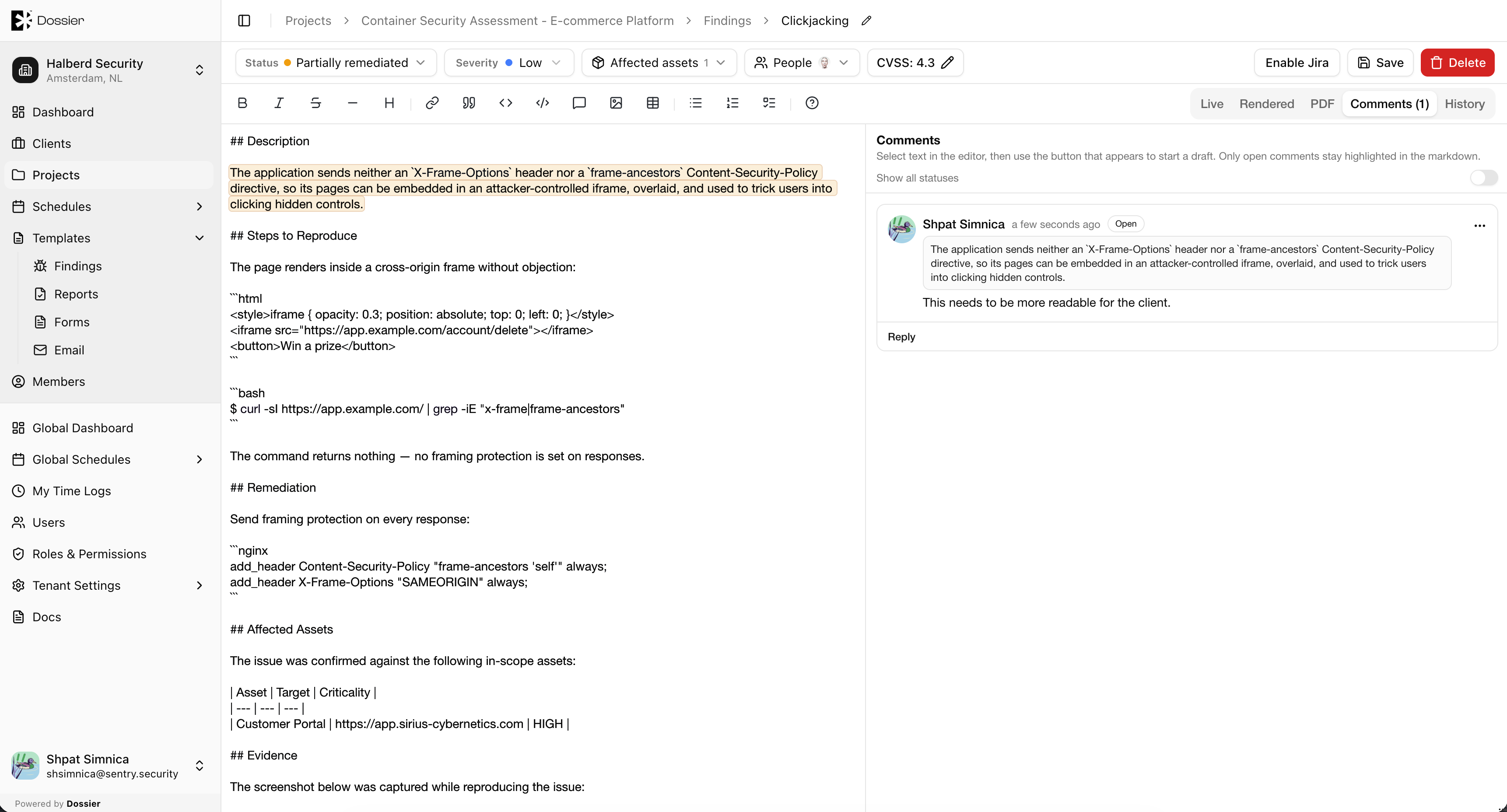
Open the comments panel on the finding detail page to add inline comments anchored to specific text in the content.
- Comments support threaded replies.
- Each comment has its own status: Open, Resolved, Won't Fix, Obsolete.
- Status changes on comments can trigger email notifications.
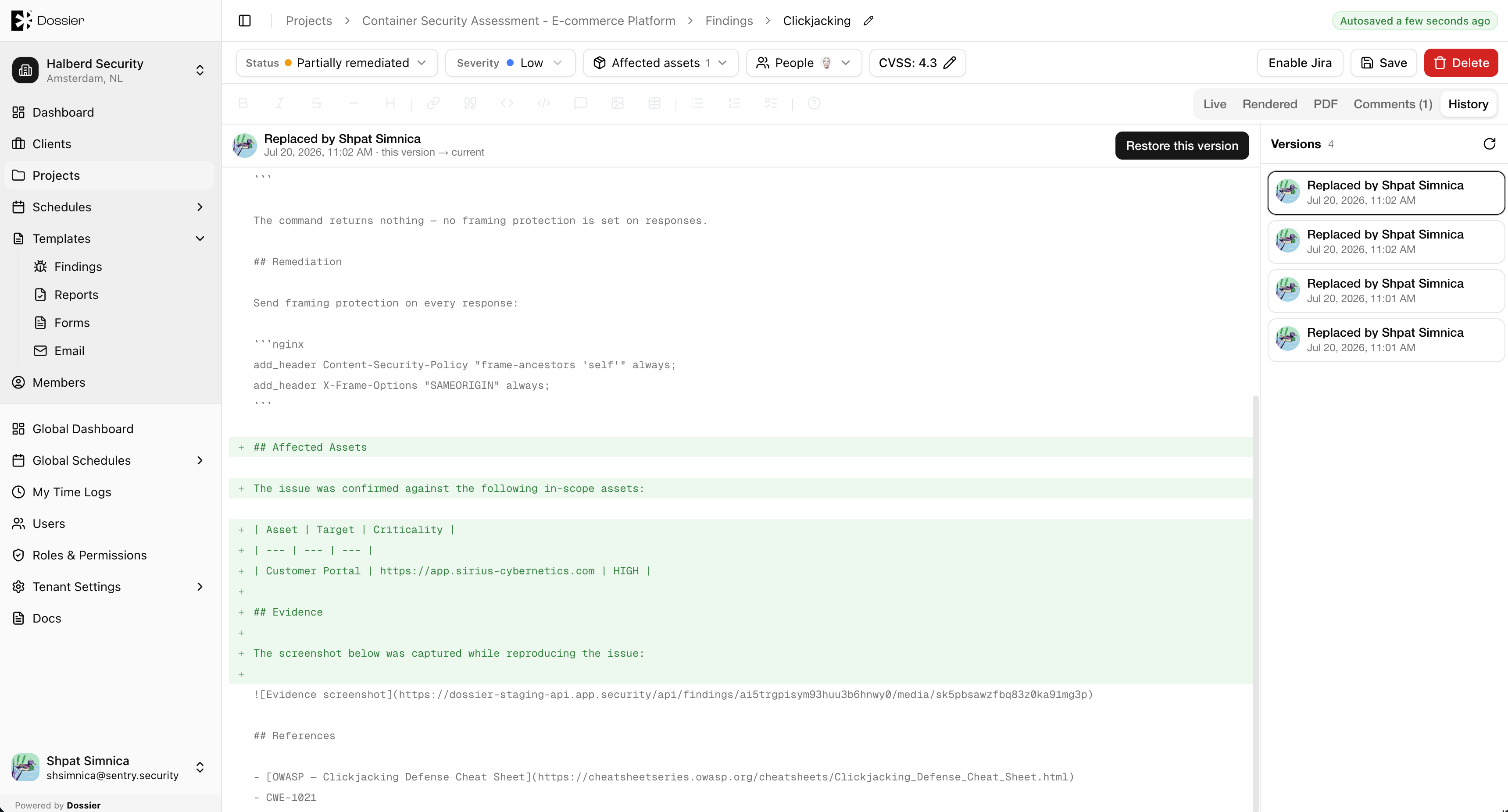
Content History
Every content edit creates a version snapshot. Open the history panel to:
- View previous versions
- Compare versions with a diff view
- Restore a previous version
Creating a Jira Ticket
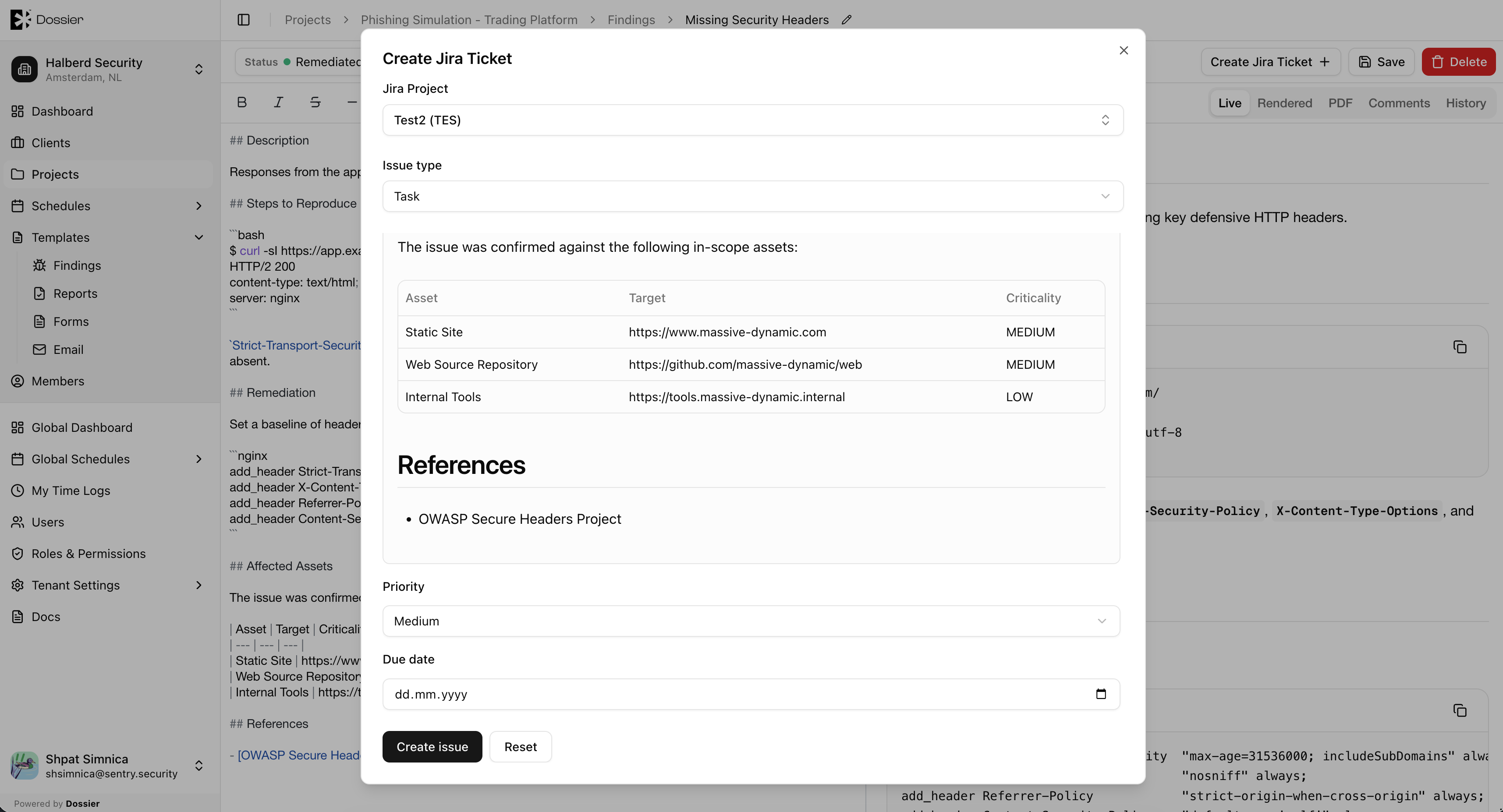
If the client has Jira connected:
- Open the finding detail page.
- Click Create Jira Ticket.
- Confirm the Jira project and issue details.
- The Jira issue link appears on the finding.
Deleting a Finding
From the detail page
Click Delete on the finding detail page and confirm.
From the list
Select findings using checkboxes and click bulk delete, or use the row action menu.
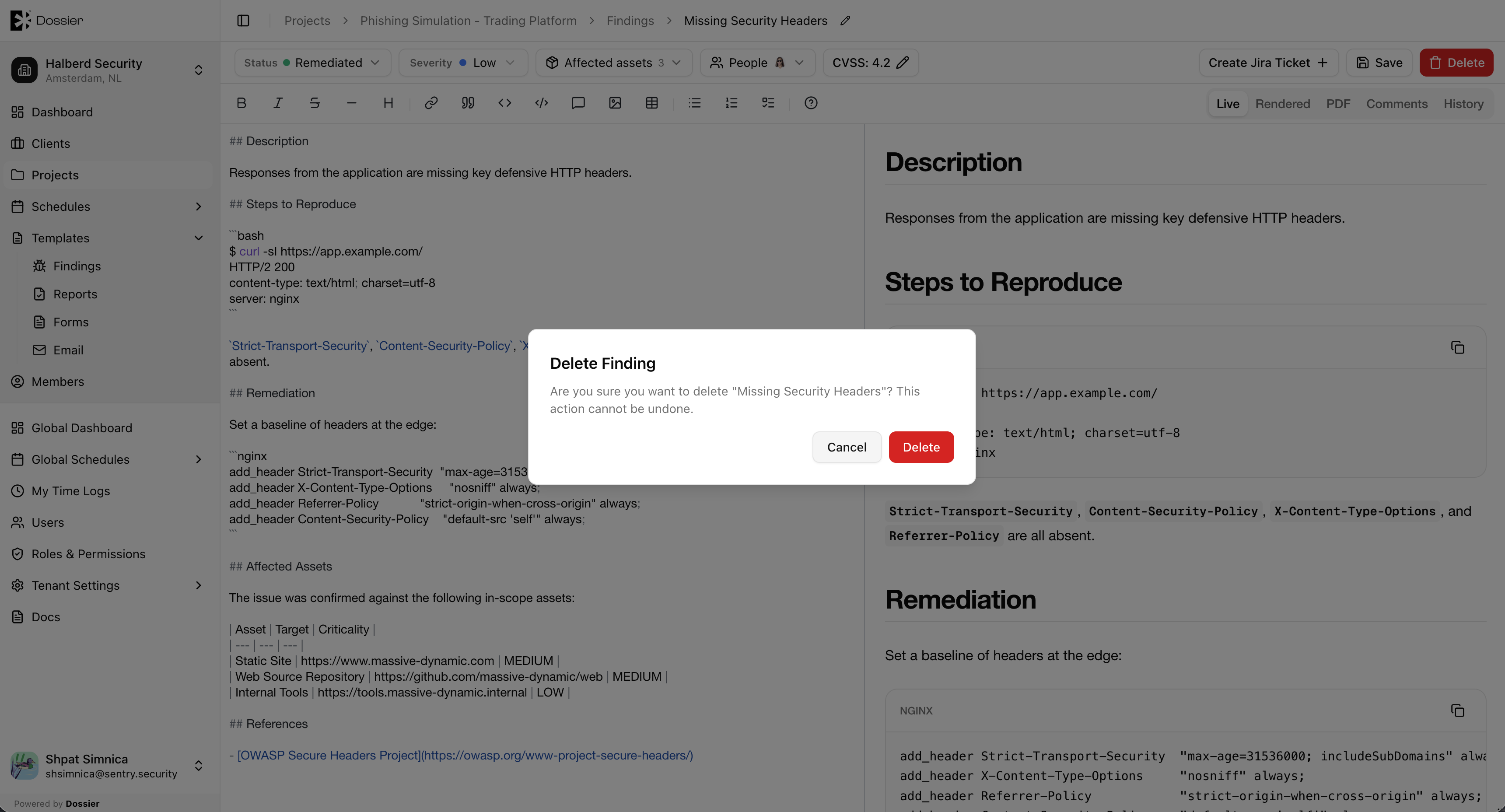
Deleting a finding permanently removes its content, comments, and version history. This action cannot be undone.