Members
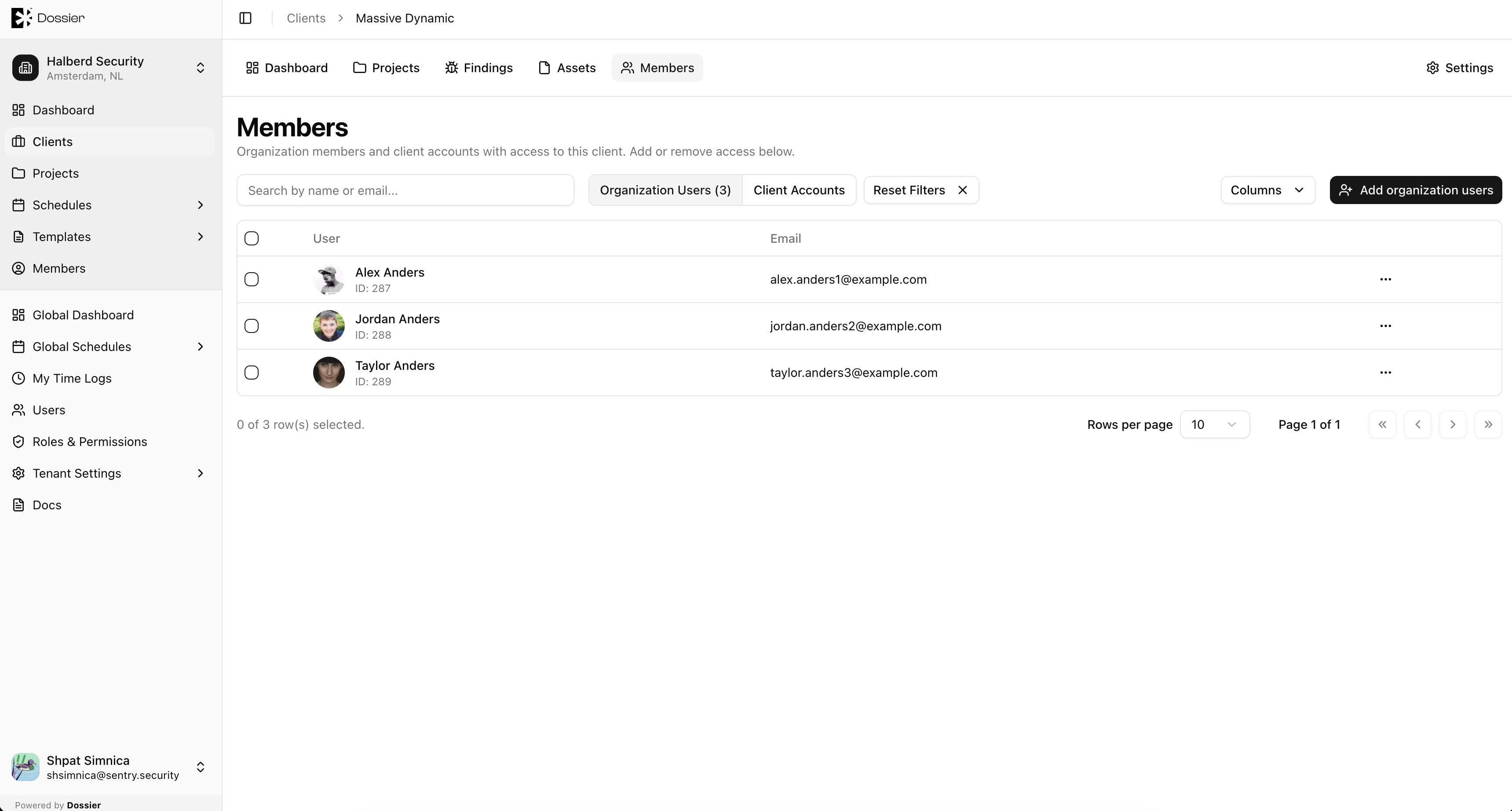
The Members tab is where you control who has access to a client. It works similarly to organization members — you add or remove users from the client without deleting their account. Removing someone only revokes their access to this client; you can add them back at any time.
From this tab you can:
- Grant organization users (team members) access to the client's projects and data
- Add existing client accounts that already exist in the tenant
- Create a new client account directly for this client
How Client Access Works
Access to a client is managed through membership — a link between a user and the client. Users appear on the Members tab only after they have been explicitly added.
| Action | What happens |
|---|---|
| Add | Grants the user access to this client's projects, findings, assets, and other data |
| Remove | Revokes access to this client only — the user account is not deleted |
| Add again | A removed user can be re-added later with no data loss to their account |
Removing a member from a client is not permanent. Their user account remains in Dossier and can be given access again whenever needed.
Organization Membership Requirement
A user must already be a member of the parent organization before they can be given access to a client within it.
For example, to add a team member to Client A (which belongs to Organization X):
- The user must first be a member of Organization X (via Members in the org sidebar)
- Then they can be added on Client A's Members tab
When you click Add organization users, the picker only shows users who belong to the client's organization. If someone does not appear in the list, add them to the organization first.
Organization Users vs Client Accounts
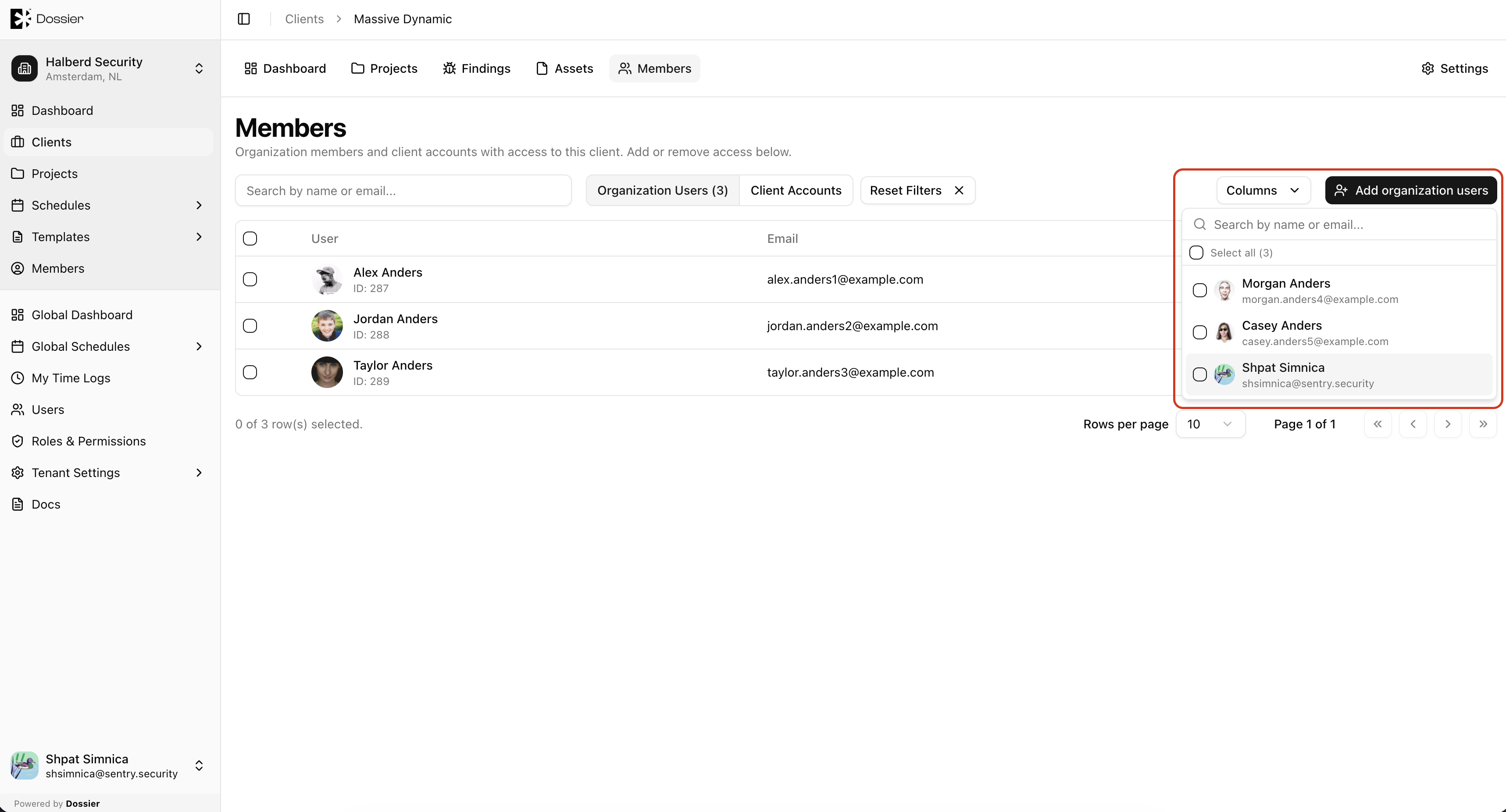
The Members tab has two views, toggled at the top of the table:
| View | User type | Purpose |
|---|---|---|
| Organization Users | Team members | Consultants and staff who work on this client's projects from the full app |
| Client Accounts | Client accounts | External users who access this client through the simplified client portal |
Adding Organization Users
Use this to give an existing team member access to the client.
Step 1: Open the Members tab
Navigate to the client and click Members in the section navigation.
Step 2: Select the Organization Users view
Ensure the Organization Users toggle is active.
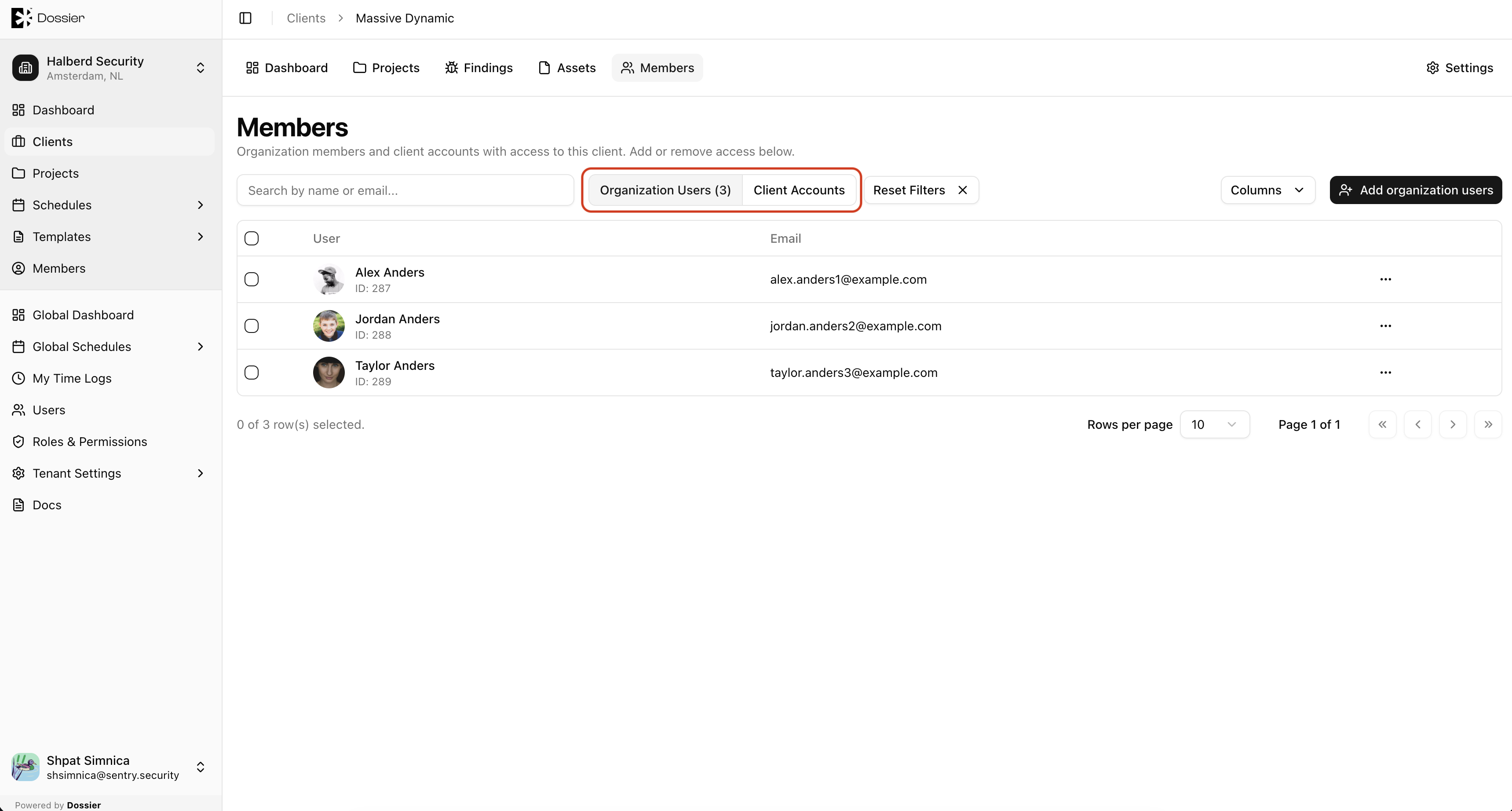
Step 3: Click Add organization users
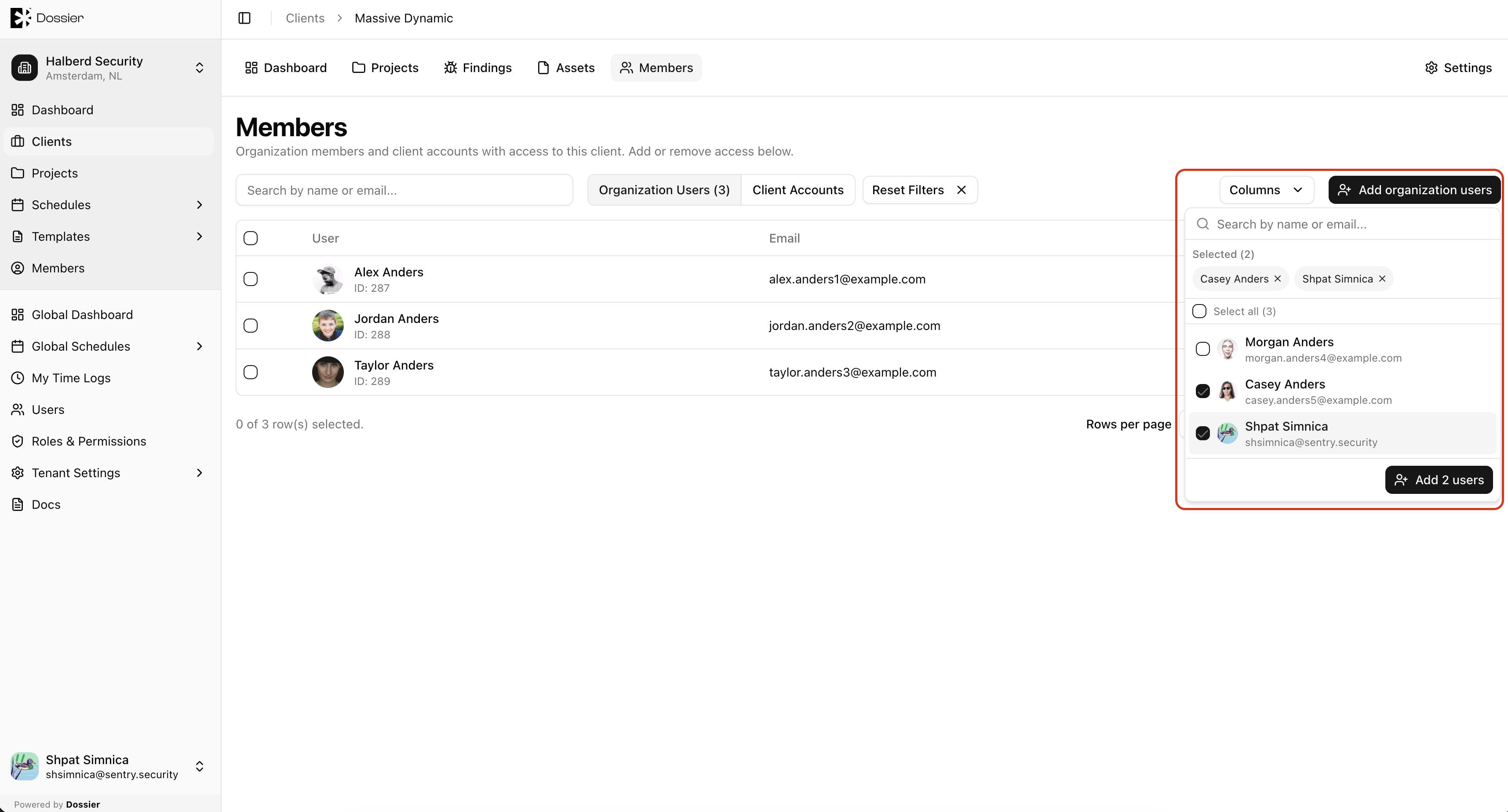
Search for the user by name or email. Only users who are members of the client's parent organization appear in the list.
Step 4: Confirm
Click Add to grant access. The user immediately appears in the members table.
Adding Existing Client Accounts
Use this when a client account already exists in the tenant and needs access to this client.
Step 1: Switch to the Client Accounts view
Select the Client Accounts toggle.
Step 2: Click Add client accounts
Search for and select the existing client account.
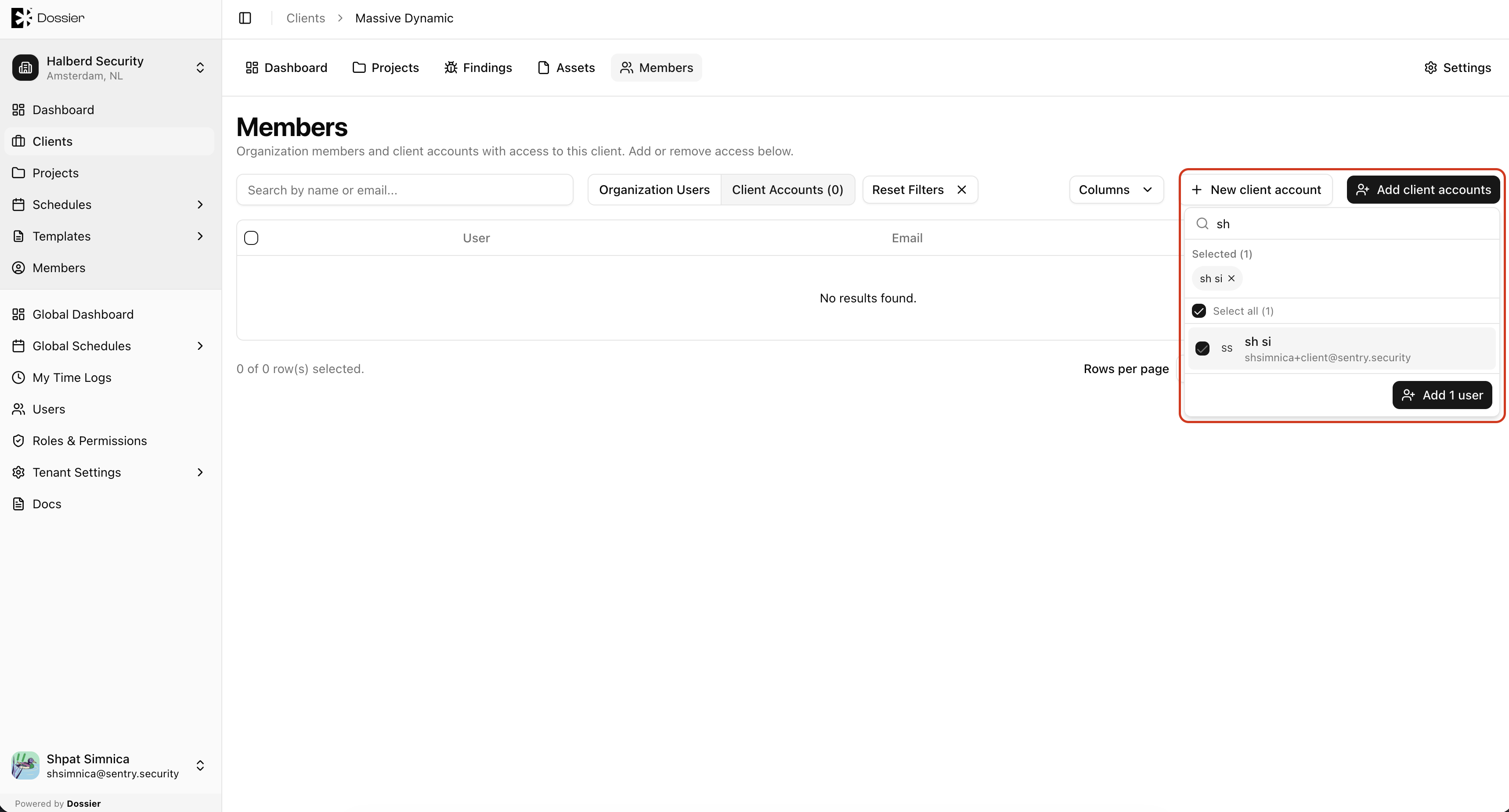
Step 3: Confirm
Click Add to link the account to this client.
Creating a New Client Account
Use this to create a brand-new client portal user directly from the client.
Step 1: Switch to the Client Accounts view
Select the Client Accounts toggle.
Step 2: Click New client account
The Create New Client Account dialog opens.
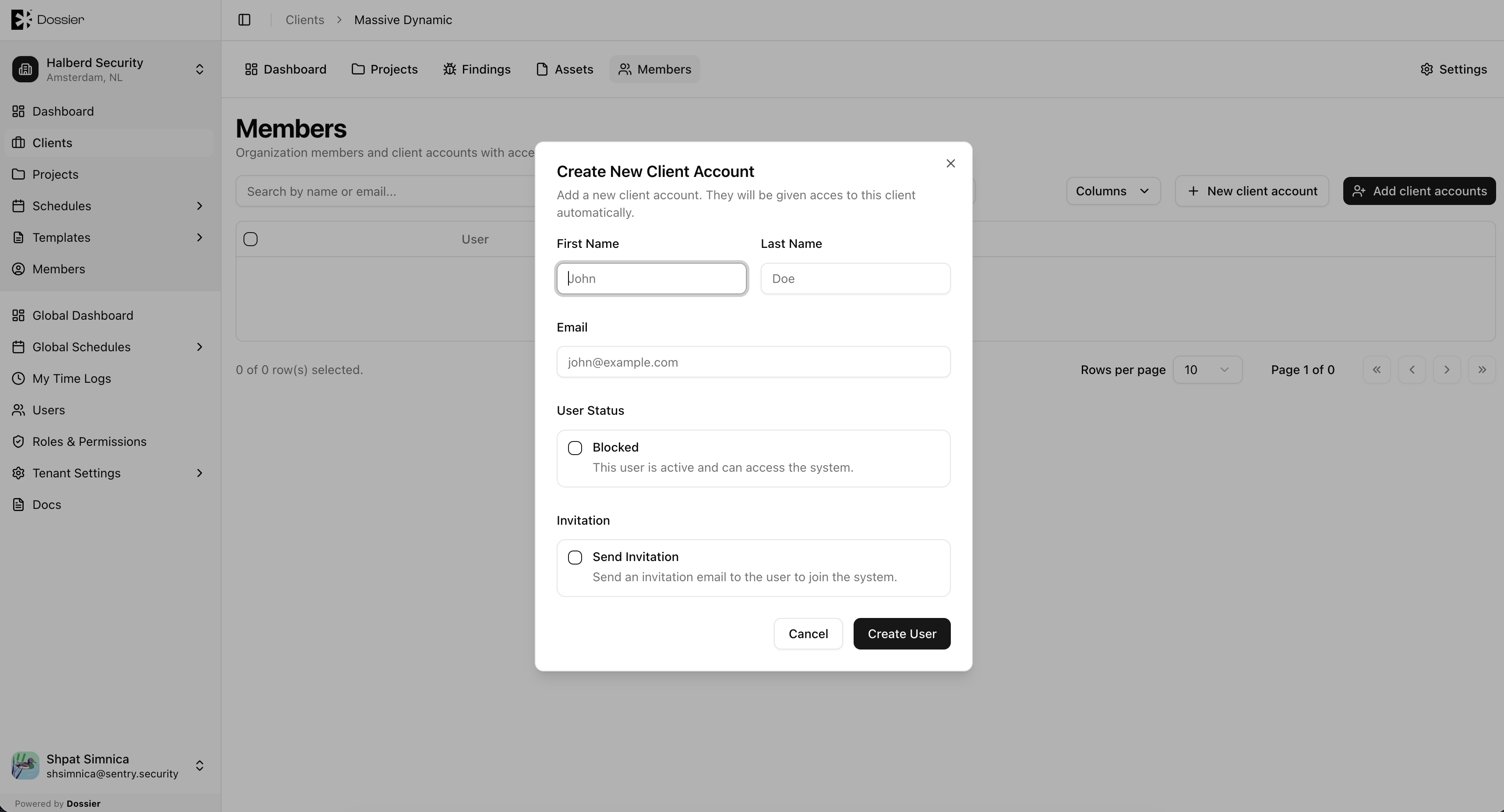
Step 3: Fill in account details
| Field | Description |
|---|---|
| First Name | The user's first name. |
| Last Name | The user's last name. |
| The user's email address. | |
| Blocked | Prevent the user from signing in. |
| Send Invitation Email | Send an invitation for the user to complete signup. |
Step 4: Click Create
The client account is created with the Client role and automatically added as a member of this client.
Removing Members
Removing a member revokes their access to this client. It does not delete their user account.
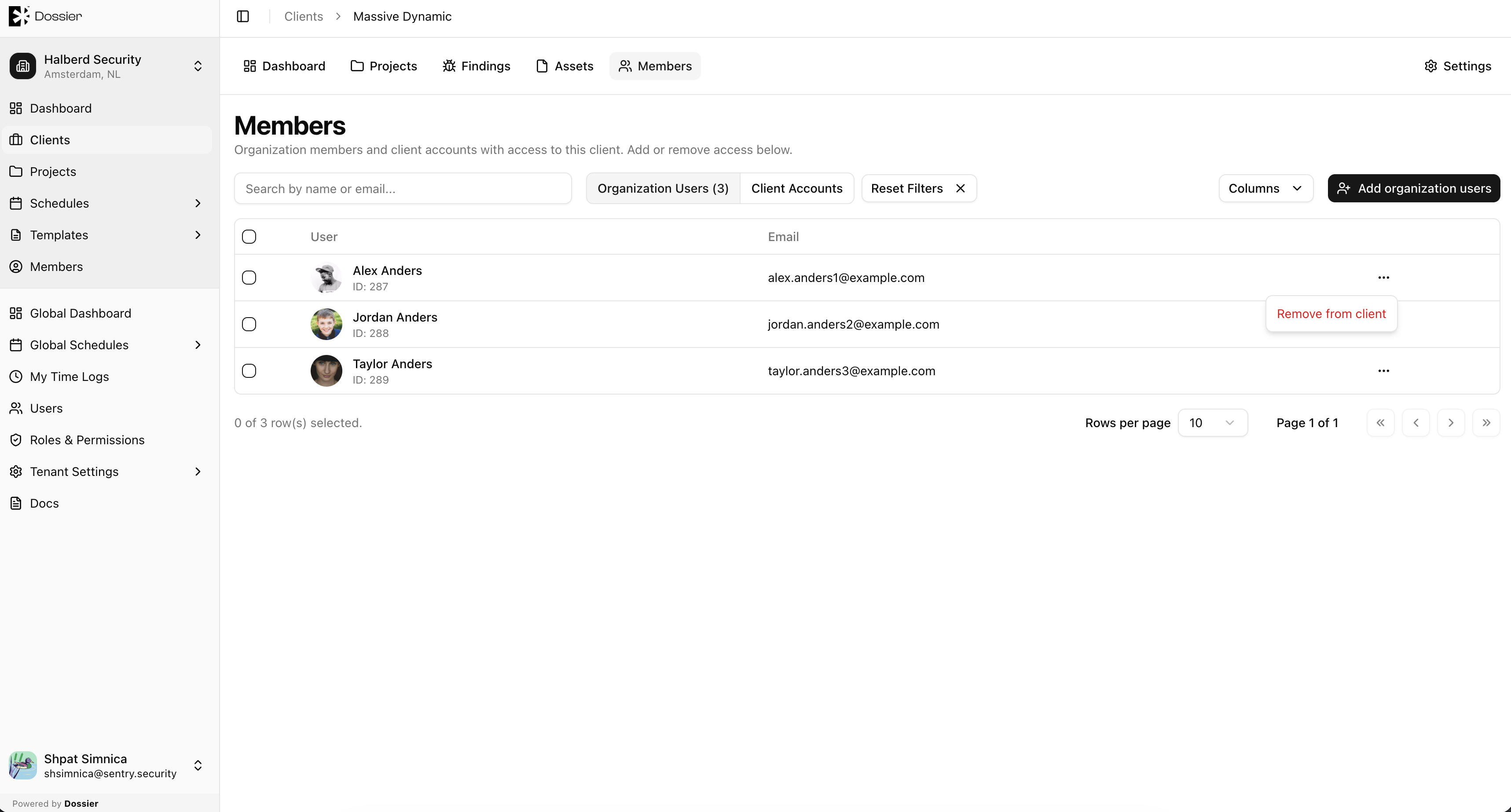
Remove a single member
- Click the row action menu (⋯) next to the user.
- Select Remove from client.
- Confirm in the dialog.
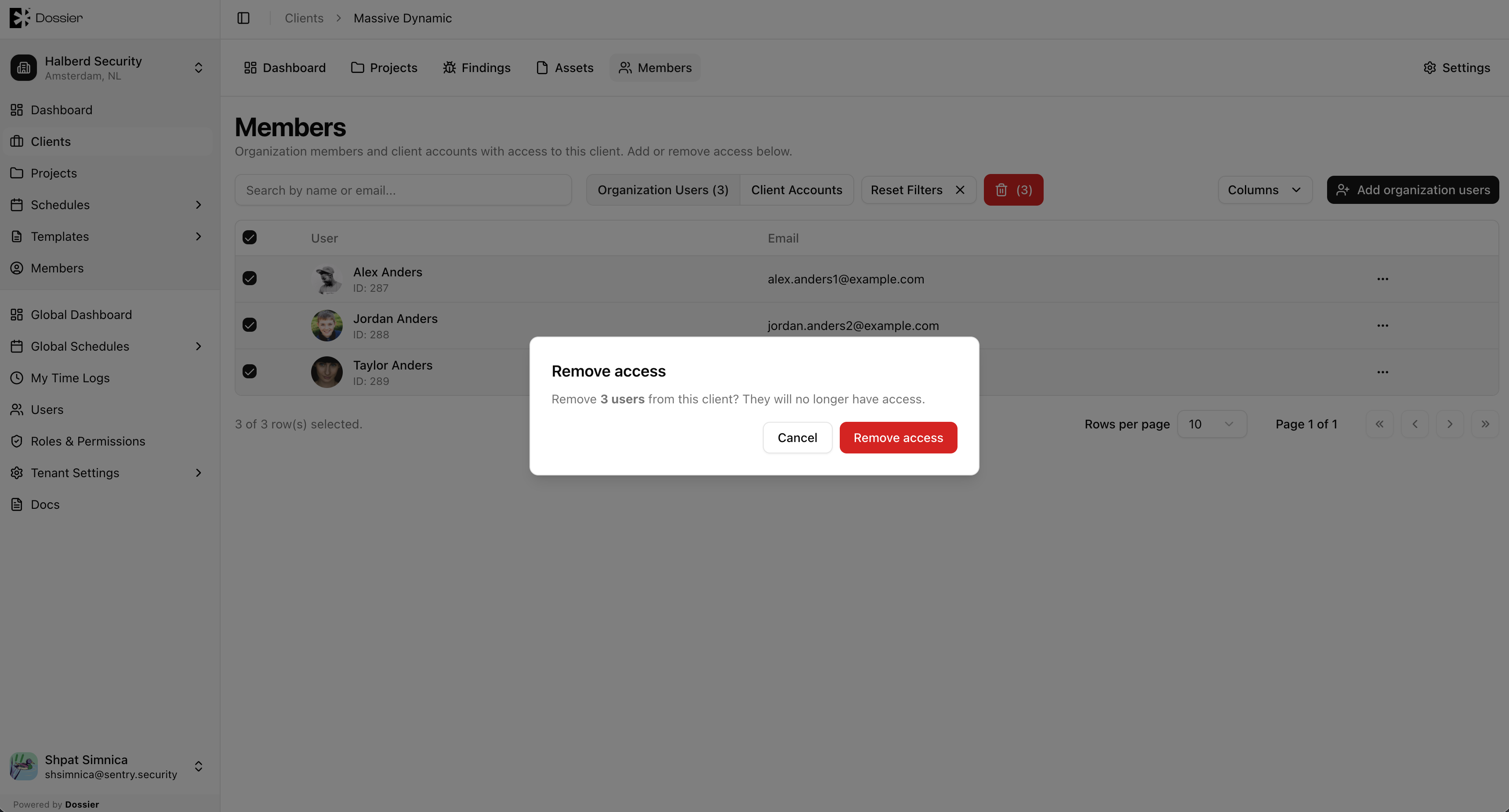
Remove multiple members
- Select members using the checkboxes.
- Click the bulk remove button.
- Confirm in the dialog.
After removal, the user's account still exists in Dossier. Re-add them from the Members tab whenever access should be restored.
What Client Accounts Can Access
Client accounts added as members can use the client portal to:
- View non-draft projects and their dashboards
- Review findings (excluding draft findings)
- View and manage project assets they created
- Submit project forms
- View project statistics and remediation status
They cannot access team-only features such as the report editor or template management. Overview content appears in the portal once the team marks it ready. See the Client Portal section for the full client experience.